Within this blog post I will be explaining the 2 Adobe illustrator self portraits I have constructed using Adobe Illustrator.
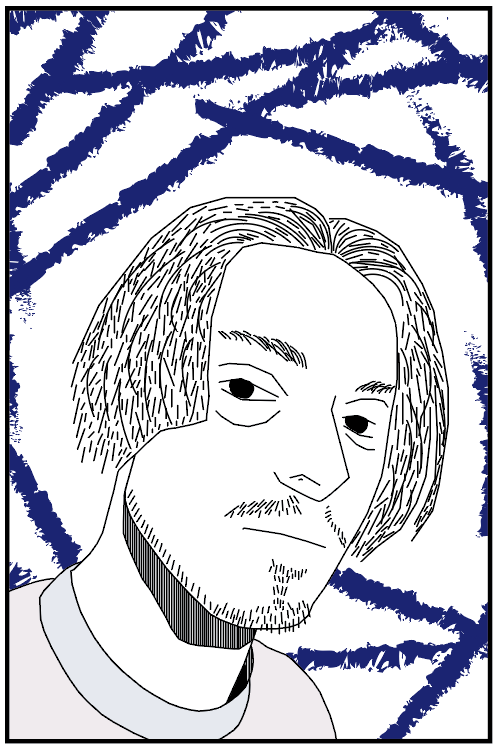
First of all, my thought behind this portrait was to create a portrait in a manga book format (a Japanese comic) as for the past few years I have been heavily into reading manga. One of my goals is to perfect the manga simplicity to recreate different characters in my own personal style such as the famous “Chainsaw Man” (Fandom, n.d) style that I got inspiration for within my portrait.
My thought process for my creation was simple outlines around the main features of my face, and the addition of multiple lines to give off a shadow effect. In addition for my facial hair I used thin strokes of the “pen tool” to create a simple, yet effective facial hair structure.
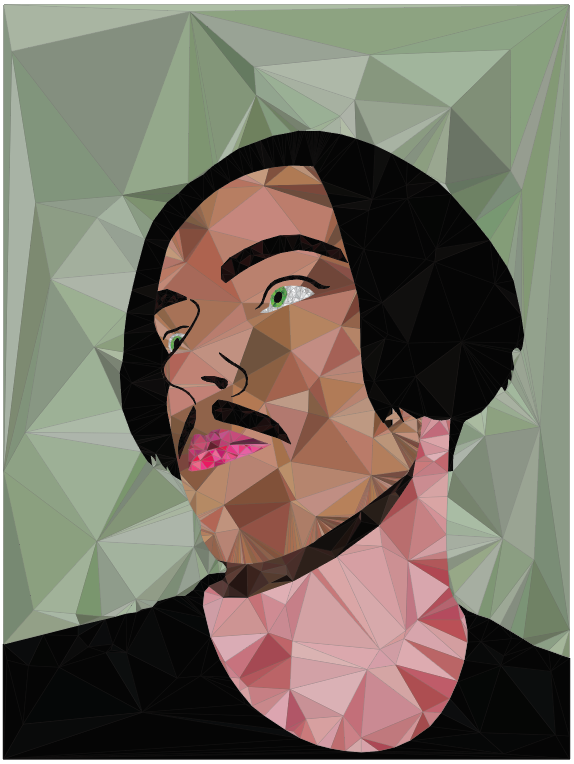
Firstly, my thought behind this portrait was to create a polygon portrait which links to video games perfectly, this is because all video games created use small polygon to create a high quality image. This can be shown within my eye ball, if you look closely you can see that the eye ball is made up of many small polygons to create a smooth and round iris. In addition I used darker polygons where shadows are located to make the face stand out more.
My creation process was to create a thin outline within all of the part of my portrait such as the neck, shirt, face, hair and even the background. Once all of the outlines have been creative I used a pen tool to create triangles, then I copy and pasted them around my face. I then changed the colour of them to make the triangles stand out more and to make the portrait more abstract.
Chainsaw Man Fandom. (n.d) Kishibe. Available at: https://chainsaw-man.fandom.com/wiki/Kishibe/Image_Gallery [Accessed 11/12/2024]